Embed a Web Form on your website
Embed a Hiver Web Form on your website and open it from a button, link, or another element.
Before you begin
Get the embed code for the Web Form:
- If your Hiver admin sent you installation instructions, copy the embed code from the email.
- If you have admin access, go to Admin Panel → Web Forms, select the Share icon for the form, and copy the embed code.
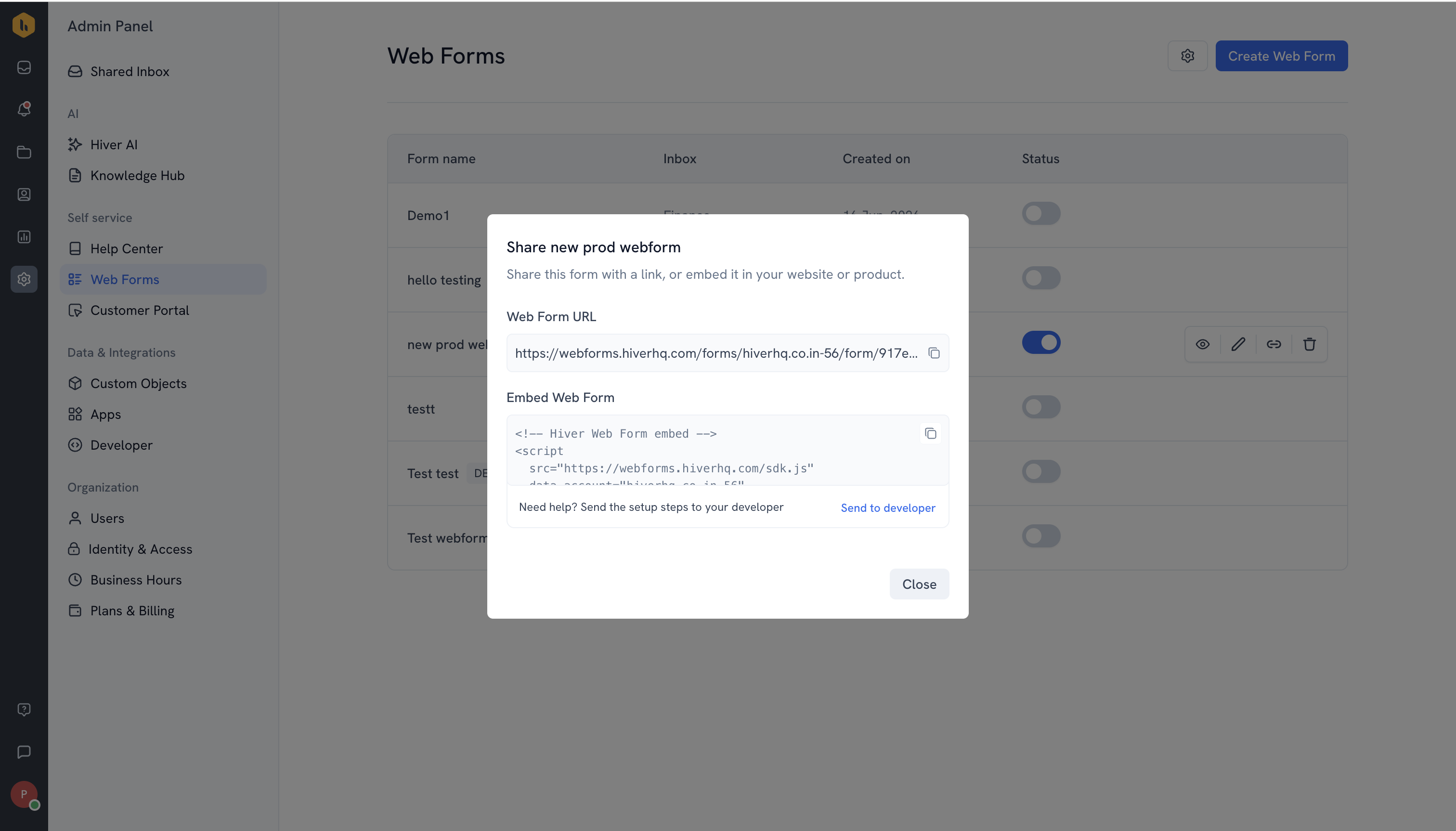
The copied code includes the correct data-account and data-form-token values. Don’t replace or change them.
Installation
Paste the embed code you copied just before the closing </body> tag on every page where the form should be available. The embed code loads the form. To let visitors open it, connect it to a button or link on your website.
Open the Web Form
Use HiverWebForm.open() to open the Web Form. When triggered, the Web Form appears over the current page, so visitors can submit it without leaving your website.
From a button
Add this code where you want the button to appear on your website:
<button type="button" onclick="HiverWebForm.open()">
Contact us
</button>From a link
Add the following code where you want the link to appear on your website:
<a href="#" onclick="HiverWebForm.open(); return false;">
Get in touch
</a>
From your JavaScript codeFrom your JavaScript code
If your website handles clicks through JavaScript, replace myButton with the reference to the element that should open the Web Form:
 // e.g. in React/Vue/vanilla
myButton.addEventListener('click', () => window.HiverWebForm.open());
Verifying the installation
Refresh the page and select the button, link, or element connected to the Web Form to confirm that it opens.
Customize the popup
By default, the popup is 640 pixels wide, adjusts its height to the form, and appears in the center of the page.
To | Update |
Change the width | Add data-width="480" to the embed code |
Set a fixed height | Add data-height="600" to the embed code |
Position the popup in a corner | Add one horizontal and one vertical offset, such as data-margin-right="24" and data-margin-bottom="24" |
If you don’t set a fixed height, the popup becomes scrollable when it reaches 90% of the screen height.
You can also customize the popup each time it opens by passing options to HiverWebForm.open():
 HiverWebForm.open({
  width: 420,
  marginRight: 24,
  marginBottom: 24
});
Prefill visitor information
If your website has access to the signed-in visitor’s details, you can prefill their email address and name in the Web Form.
Before adding the code, replace:
- currentUser.email with the reference your website uses for the signed-in visitor’s email address.
- currentUser.fullName with the reference your website uses for the signed-in visitor’s name.
<script>
HiverWebForm.init({ email: currentUser.email, name: currentUser.fullName });
</script>
<button type="button" onclick="HiverWebForm.open()">Contact support</button>Note: The email address is prefilled and can’t be edited by the visitor.
Troubleshooting
The Web Form doesn’t open
Make sure that:
- The embed code is on the same page as the button, link, or element that opens the form.
- The Web Form is active in Hiver.
- The Web Form hasn’t been deleted.
The Web Form doesn’t work during local testing
Run the page using a local web server and open it through http://. The Web Form may not work if you open the HTML file directly using file://.
Content Security Policy (CSP)
If you have Content Security Policy enabled, allow https://webforms.hiverhq.com in script-src and frame-src. If it still doesn't work, check your browser's developer console for the blocked Content Security Policy directive and add https://webforms.hiverhq.com to it.
On this page
- Embed a Web Form on your website